

Back
Export an EMIS search as XML
Table of contents
Use this guide to export the definition of a saved search from EMIS Web as an XML file. The process uses the Export control in Population Reporting. It does not export a patient results list.
Before you start
- Sign in to EMIS Web and make sure you have access to Population Reporting.
- Know the folder and name of the search you need to export.
- Choose an approved secure location for the XML file.
Step 1: Open Population Reporting
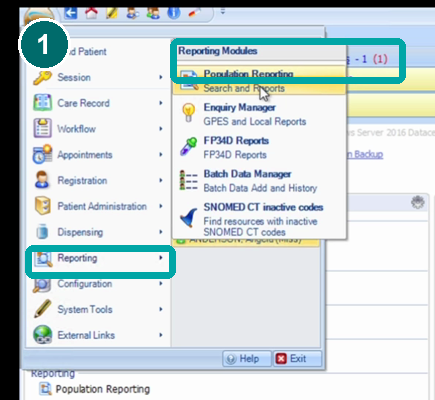
- Select the EMIS menu in the top left of EMIS Web.
- Point to Reporting.
- Select Population Reporting.
Step 2: Find and select the search
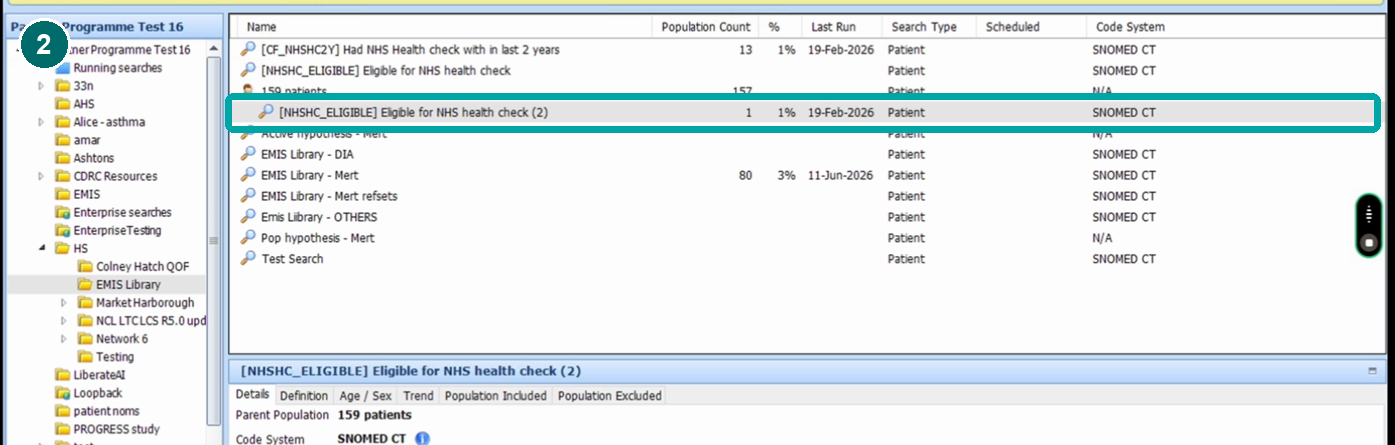
- Use the folder tree on the left to open the folder that contains the search.
- Select the search once so its row is highlighted.
- Check the name in the details area before you continue.
Step 3: Export the search
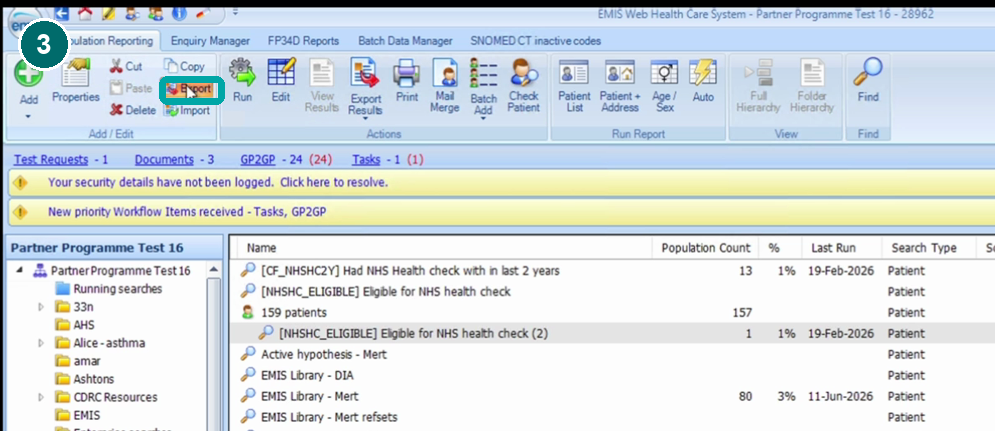
- With the correct search still selected, choose Export in the Add and Edit section of the ribbon.
Important: Do not choose Export Results. Export Results is a separate control used for report output, not the XML search definition covered by this guide.
Step 4: Name and save the XML file
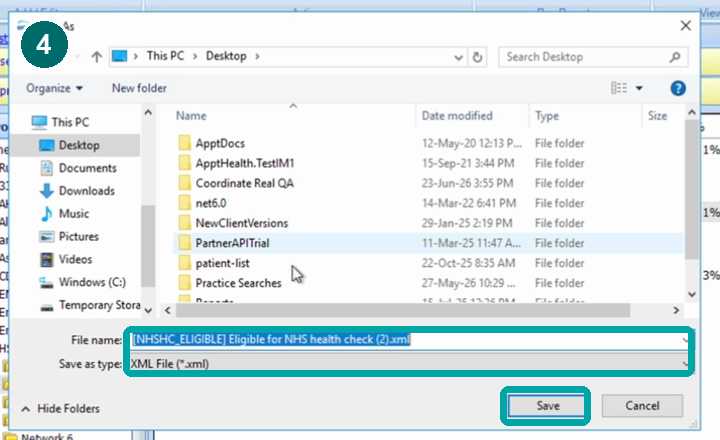
- In the Save As window, choose the approved folder.
- EMIS suggests a filename based on the search name. You can change the filename if needed, but keep the .xml extension.
- Confirm that Save as type is XML File (*.xml), then select Save.
Check the export
- Open the folder you selected and confirm that the XML file is present.
- Check that the filename ends in .xml.
- Use only an approved secure method if you need to share the file.
Troubleshooting
- Export is unavailable. Make sure a search is selected. If it is still unavailable, check your EMIS permissions with your local administrator.
- The file cannot be found. Check the folder chosen in the Save As window and search for the exact filename shown there.
- A patient list is needed. Stop and use your organisation's approved results export process. This guide covers the XML search definition only.
Was this article helpful? Let us know!
Report a bug or give feedback on the application's features? Contact us
Thanks for the feedback! This will help us improve our content.
Oops! Something went wrong while submitting the form.
Thank you! Your submission has been received!
Oops! Something went wrong while submitting the form.